The screen time module Omarchy is missing
Nothing tracks screen time on Omarchy, so I built something that does, quietly running in the background and showing me how my days actually add up.
Ever since moving to Omarchy, I’ve had this itch to keep track of my screen time. On macOS (and even iOS), this is just there, baked into the system. You don’t think about it, you just open it and get your numbers.
Tracking screen time on Linux
On Linux, things work a bit differently. If something exists, it’s because someone decided it should exist. Not the system. Not the OS. A person. And honestly, that’s part of the charm—but also part of the friction.
So if I wanted screen time tracking, I had to build it, or find a person that had already built one. But that isn’t as exciting as building it, is it?
Why this even matters
Screen time sounds simple, but it’s surprisingly flexible.
You might just want to know how long you’re sitting in front of your computer. Or maybe you want a rough idea of how much you’re working each day. If you freelance, you could even take it further and track time per client, so you know how much to bill them.
My setup doesn’t go that far, but it wouldn’t be hard to extend it.
At its core, though, I just wanted something truthful. Something that runs quietly in the background and doesn’t depend on me remembering to start or stop anything.
Why a Waybar module
The obvious place for this was the Waybar. It’s always there. Always visible. No friction.
That gives you a few nice properties:
- It’s always running;
- It’s always one glance away;
- It fits naturally into the system;
From the user’s point of view, it’s just an icon. You can click it to pause if you really want to, but most of the time you don’t have to think about it at all.
That was the goal.
Making it automatic
The key part of making this work wasn’t the timer itself—it was automation.
When the system locks, the timer pauses.
When it unlocks, it resumes.
That’s it.
No manual tracking. No “oh I forgot to stop it”. No inflated numbers. This one detail made the whole thing actually usable. Accurate by default.
general {
  lock_cmd = omarchy-lock-screen
  on_unlock_cmd = /home/pmpinto/scripts/active-timer-toggle resume
  before_sleep_cmd = /home/pmpinto/scripts/active-timer-toggle pause && loginctl lock-session
}

# After 2 min on screensaver
listener {
    timeout = 121
    on-timeout = /home/pmpinto/scripts/active-timer-toggle pause && omarchy-lock-screen
}
The above is how I have set this up with hypridle.
The multi-computer problem
Things got a bit more interesting when I introduced a second machine.
After using a Framework desktop for a while, I picked up a Framework laptop to use as my main work device. Both machines share the same setup, and I use a monitor with a built-in KVM.
That basically means I can plug everything into the monitor—keyboard, mouse, camera, headphones—and just switch between machines instantly.
Super clean setup. But it created a weird problem.
In Omarchy, each display runs its own Waybar instance. So when I connected the laptop, I suddenly had two timers running at the same time.
It created a race condition, where each instance was trying to write the data before the other, ending up completely wiping the data file.
Fixing the data mess
The solution wasn’t to prevent multiple instances—it was to make them cooperate.
After a small revision, the tracker now handles multiple running instances without corrupting the data. No matter how many Waybars are active, they all write safely to the same source of truth.
From the outside, nothing changed. From the inside, everything became reliable.
What it actually shows
The UI stays intentionally simple. You get an icon in the Waybar. That’s it.
But when you hover it, you see:
- Your current day;
- Your current week;
- Your rolling 7-day average;
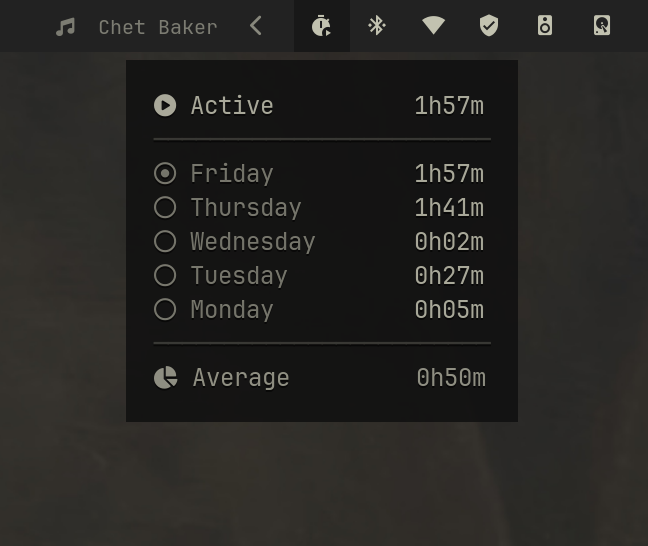
Just enough to understand your habits without overloading you with stats.
How it works under the hood
The tracker writes to a JSON file on every tick. Nothing fancy, just a simple structure that keeps accumulating time safely.
#!/usr/bin/env bash
DIR="$HOME/.config/active-timer"
STATE="$DIR/state"
LAST="$DIR/last_tick"
DAYS="$DIR/days.json"
LOCK="$DIR/.lock"
SEP="<span alpha='24%'>$(printf '─%.0s' {1..24})</span>"
mkdir -p "$DIR"
now=$(date +%s)
state=$(cat "$STATE" 2>/dev/null || echo paused)
last=$(cat "$LAST" 2>/dev/null || echo "$now")
delta=$((now - last))
echo "$now" >"$LAST"
workday() {
if [[ $(date +%H) -lt 6 ]]; then
date -d "yesterday" +%Y-%m-%d
else
date +%Y-%m-%d
fi
}
today="$(workday)"
(
flock -n 9 || exit 0
# ensure JSON exists and is valid
if [[ ! -s "$DAYS" ]] || ! jq empty "$DAYS" >/dev/null 2>&1; then
echo "{}" >"$DAYS"
fi
if [[ "$state" == "running" && $delta -gt 0 && $delta -lt 3600 ]]; then
tmp=$(mktemp)
if jq --arg d "$today" --argjson s "$delta" \
'.[$d] = (.[$d] // 0) + $s' "$DAYS" >"$tmp"; then
mv "$tmp" "$DAYS"
else
rm -f "$tmp"
fi
fi
tmp=$(mktemp)
if jq '
to_entries
| sort_by(.key)
| reverse
| .[:5]
| from_entries
' "$DAYS" >"$tmp"; then
mv "$tmp" "$DAYS"
else
rm -f "$tmp"
fi
) 9>"$LOCK"
fmt() {
printf "%dh%02dm" $(($1 / 3600)) $((($1 % 3600) / 60))
}
today_secs=$(jq -r --arg d "$today" '.[$d] // 0' "$DAYS")
if [[ "$state" == "paused" ]]; then
lines="<span alpha='64%'> $(printf "%-10s" "Paused ")$(printf "%11s" "$(fmt "$today_secs")")</span>"
else
lines="<span alpha='96%'> $(printf "%-10s" "Active ")$(printf "%11s" "$(fmt "$today_secs")")</span>"
fi
sum=0
count=0
if jq -e 'length > 0' "$DAYS" >/dev/null; then
lines="$lines
$SEP"
fi
while read -r d s; do
dayname=$(date -d "$d" +%A)
dayname_padded=$(printf "%-9s" "$dayname")
icon=""
[[ "$d" == "$today" ]] && icon=""
lines="$lines
<span alpha='64%'>$icon $dayname_padded</span> <span alpha='96%'>$(printf "%11s" "$(fmt "$s")")</span>"
sum=$((sum + s))
count=$((count + 1))
done < <(
jq -r '
to_entries
| sort_by(.key)
| reverse
| .[]
| "\(.key) \(.value)"
' "$DAYS"
)
if ((count > 0)); then
avg=$((sum / count))
lines="$lines
$SEP
<span alpha='80%'> $(printf "%-10s" "Average ")$(printf "%11s" "$(fmt "$avg")")</span>"
fi
icon=""
[[ "$state" == "paused" ]] && icon=""
jq -nc --arg text "$icon" --arg tooltip "$lines" '{text:$text, tooltip:$tooltip}'
And here’s what that data looks like:
{
  "2026-05-17": 18640,
  "2026-05-16": 21420,
  "2026-05-15": 9800,
  "2026-05-14": 15210,
  "2026-05-13": 20105
}
And for whatever reason I felt like having the toggling in a separate script. So that one script handles the tooltip and data, and the other handles the toggling—you should probably merge these together if you are reusing them.
So here’s the second script:
#!/usr/bin/env bash

STATE_DIR="$HOME/.config/active-timer"
STATE_FILE="$STATE_DIR/state"
LAST_TICK="$STATE_DIR/last_tick"

current="$(cat "$STATE_FILE" 2>/dev/null || echo paused)"

case "$1" in
  pause)
    echo paused > "$STATE_FILE"
    ;;
  resume)
    echo running > "$STATE_FILE"
    ;;
  toggle|"")
    if [[ "$current" == "running" ]]; then
      echo paused > "$STATE_FILE"
    else
      echo running > "$STATE_FILE"
    fi
    ;;
esac

date +%s > "$LAST_TICK"
The only missing part of the puzzle is the Waybar piece. I personally have it somewhere in the modules on the right side of the screen:
{
  "modules-right": [
    "custom/active-timer"
  ]
}
And then define the module as such:
{
    “custom/active-timer": {
        "exec": "/home/pmpinto/scripts/active-timer-status",
        "format": "{text}",
        "interval": 10,
        "return-type": "json",
        "tooltip": "{tooltip}",
        "on-click": "/home/pmpinto/scripts/active-timer-toggle toggle"
    }
}
Final thoughts
This ended up being one of those small tools that quietly changes how you see your day.
Not because it’s complex—but because it’s honest. It runs in the background, doesn’t ask for attention, and just tells you the truth when you look at it.
This setup solves a simple problem in a very “Linux way”: build only what you need, and make it fit your workflow. By integrating the tracker directly into the Waybar, it becomes invisible but always available.
Automation is what makes it actually useful. Pausing on lock and resuming on unlock removes human error, which is what usually breaks time tracking.
Handling multiple machines was the real challenge. Once that was solved, the system became reliable enough to trust—something essential for any kind of tracking.